
Having trouble with your iPhone? You don’t have to figure everything out yourself.
Perhaps you can’t find a setting, an app isn’t working properly, or something unexpected appears on your screen. Explaining the problem over the telephone can be frustrating, especially when you don’t know what a button or feature is called.
Fortunately, your iPhone can show a trusted friend or family member exactly what you’re seeing. In some cases, that person can even operate your phone remotely, with your permission.
There are two simple ways to get help:
- FaceTime: Share your screen with another iPhone user. They can watch what you’re doing and, with your permission, control your phone to help fix the problem.
- Zoom: Show your iPhone screen to someone using a Windows computer. They can see what’s happening and talk you through the solution.
Both methods allow you to remain on the call while receiving help.
Method 1: Get Help Using FaceTime
Best for: Someone who can help operate your iPhone remotely.
FaceTime is Apple’s built-in calling application. In addition to making video and audio calls, FaceTime allows you to share what’s happening on your iPhone.
With your permission, a trusted helper can even tap buttons, open applications, and change many settings for you.
Before You Begin
Make sure:
- Both iPhones are running iOS 18 or later.
- You have a working internet connection, using Wi-Fi or cellular data.
- You have the FaceTime app available.
- The person helping you is saved in your Contacts.
To check your iOS version, open Settings → General → About and look for iOS Version.
If you need an update, go to Settings → General → Software Update.
Follow along with the illustration titled “NEED HELP? iPhone to iPhone.”
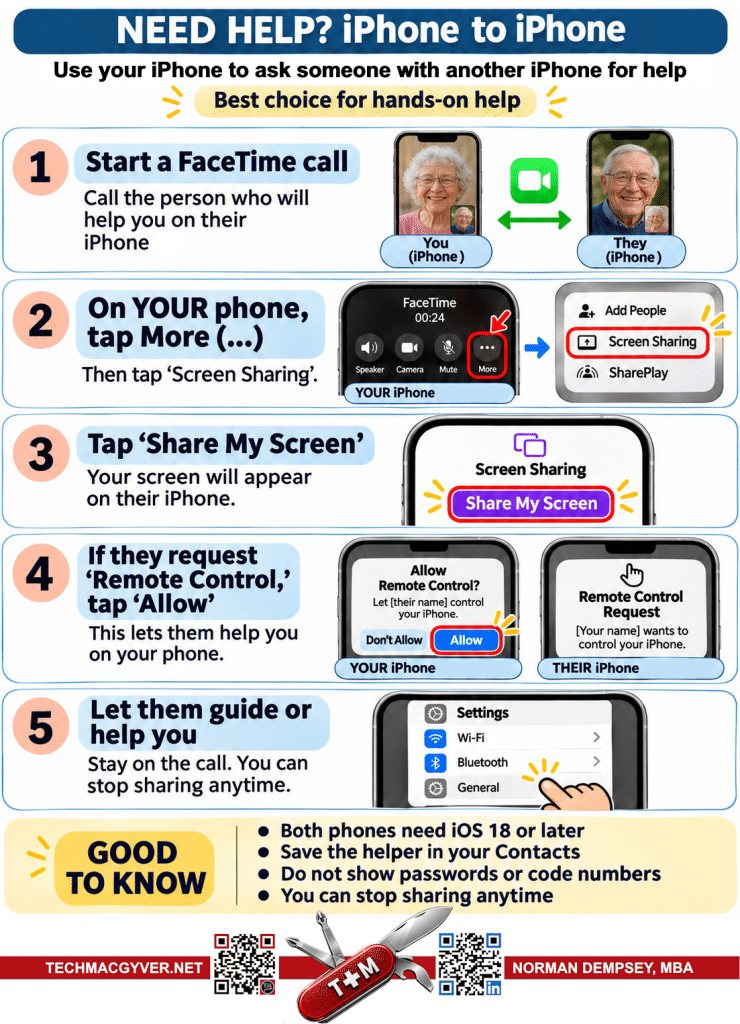
Step 1: Start a FaceTime Call
Open the FaceTime app on your iPhone.
Find the person you’d like to help you and start a FaceTime call. You can use either video or audio.
When they answer, explain that you need help with something on your phone.
You don’t need to know how to describe the problem perfectly. You’re about to show them exactly what you’re seeing.
Step 2: On Your Phone, Tap “More (…)”
While you’re on the FaceTime call:
- Tap your screen once to display the call controls.
- Find the button labeled More, represented by three dots (…).
- Tap More.
- Select Screen Sharing.
You’re now ready to let the other person see your screen.
Step 3: Tap “Share My Screen”
After selecting Screen Sharing:
- Tap Share My Screen.
- A short countdown will appear.
- When the countdown finishes, your screen will become visible to the person helping you.
You can now leave the FaceTime controls and open the application or setting that’s giving you trouble.
The other person can see what you’re doing as you navigate your phone.
For example, if you’re having trouble with email, you can open the Mail app and show them the problem.
Remember: Sharing your screen does not automatically give someone control of your iPhone. At this point, they’re primarily watching and guiding you.
Step 4: If They Request “Remote Control,” Tap “Allow”
Sometimes it’s easier to let your helper operate the phone rather than follow verbal instructions.
Your helper can request remote control of your iPhone.
When they do, a message asking whether you want to allow remote control will appear.
- Read the request.
- Make sure it’s coming from the person you trust.
- Tap Allow if you want them to control your phone.
Your helper can now perform many of the same actions you would, including tapping buttons, opening apps, and changing settings.
You remain in control. You can still use your phone while they’re helping, and your actions take priority.
For your protection, Apple restricts certain sensitive actions, including changing some account security settings and making Apple Pay payments.
Only allow someone you know and trust to control your phone.
Step 5: Let Them Guide or Help You
Now you can work together.
Your helper might open Settings, check your Wi-Fi connection, examine an application’s settings, or explain how a feature works.
You can ask questions throughout the process.
If you become uncomfortable or want to stop, you can end remote control by tapping Stop in the screen-sharing window.
To stop sharing your screen completely:
- Return to the FaceTime controls.
- Tap More (…).
- Tap Stop next to Screen Sharing.
Ending the FaceTime call also ends screen sharing and remote control.
Good to Know About FaceTime
FaceTime remote assistance is useful because your helper can do more than simply watch. With your permission, they can work directly with your phone.
However, they should never ask you to reveal passwords, account recovery codes, or other private information.
Remote control is not currently available in the European Union.
Official Apple instructions:
Method 2: Get Help From Someone Using a Windows Computer
Best for: Someone who wants to see your iPhone screen on a larger computer monitor and guide you through the problem.
If the person helping you uses a Windows computer, Zoom is another good option.
Zoom allows you to show your iPhone screen during a video or audio meeting. Your helper can watch what’s happening on their computer while talking with you.
Unlike FaceTime remote control, this method generally doesn’t allow the helper to operate your iPhone. Instead, they explain what to do, and you tap the buttons yourself.
Before You Begin
You’ll need:
- An iPhone running iOS 11 or later.
- The Zoom Workplace app installed on your iPhone.
- A working internet connection.
- A meeting invitation or meeting ID from your helper.
Your helper needs a computer with Zoom or another supported way to join the meeting.
You can download Zoom from the Apple App Store.
Follow along with the illustration titled “WINDOWS OPTION: Ask for Help on a Bigger Screen.”
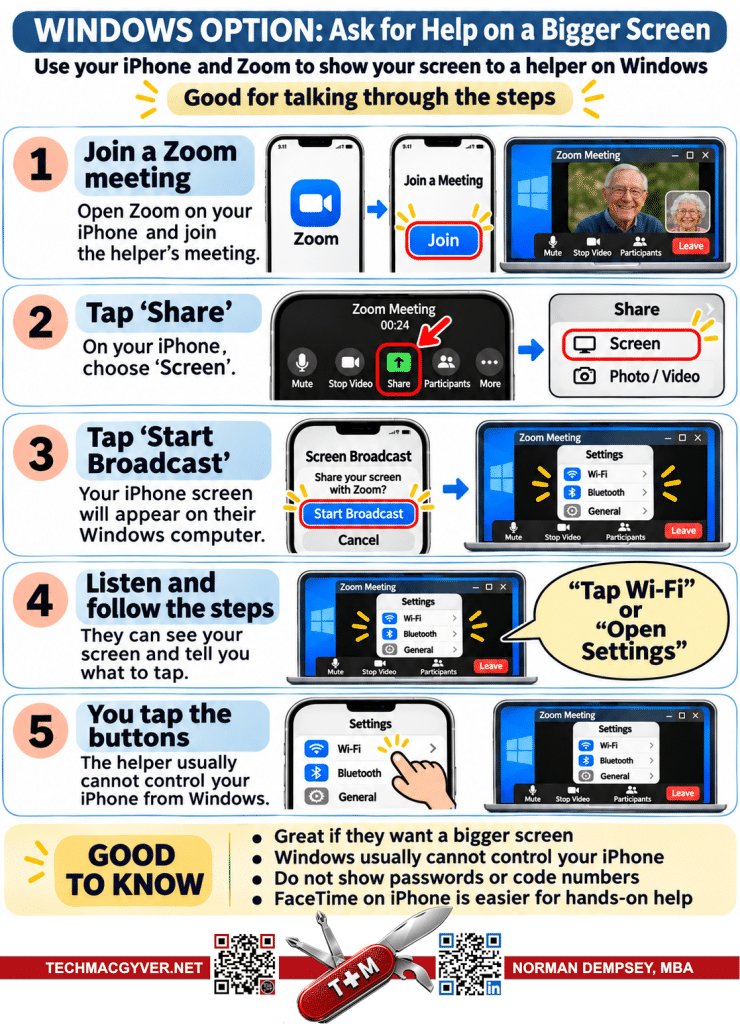
Step 1: Join a Zoom Meeting
Ask the person helping you to start a Zoom meeting and send you an invitation.
Then:
- Open the Zoom Workplace app on your iPhone, or tap the meeting invitation link.
- Tap Join if needed.
- Enter the meeting information if prompted.
- Make sure you can hear your helper.
Once you’re connected, explain what you’re having trouble with.
Your helper will guide you through the next steps.
Step 2: Tap “Share”
While you’re in the Zoom meeting:
- Tap your screen to display the Zoom meeting controls.
- Find the Share or Share Content button.
- Tap it.
- Choose Screen from the list of sharing options.
This tells Zoom that you want to show your iPhone’s screen instead of just your camera picture.
Step 3: Tap “Start Broadcast”
Your iPhone will display a screen-broadcast confirmation.
This is normal. Apple asks for your permission before an application can broadcast your screen.
- Make sure Zoom is selected.
- Tap Start Broadcast.
- Wait for the short countdown to finish.
Your iPhone screen will now be visible on your helper’s computer.
You can return to your Home Screen, open Settings, or visit the application that’s causing trouble.
Important: Your helper may be able to see personal information displayed on your screen. Avoid opening passwords, financial accounts, private messages, or other sensitive information unless necessary.
Step 4: Listen and Follow the Steps
With your screen visible, your helper can see what you’re seeing.
For example, they might say:
“Open Settings.”
“Look for Wi-Fi.”
“Tap the word General.”
Because they can see your screen, they can give you more specific instructions without guessing what you’re looking at.
Take your time. You don’t have to move quickly, and you can ask your helper to repeat an instruction whenever necessary.
Step 5: You Tap the Buttons
With this method, you continue operating your iPhone yourself.
Your helper watches your screen and explains what to do next.
This is particularly useful when learning how to use a feature, because you’re performing each step while someone guides you.
When you’re finished, stop sharing your screen:
- Return to the Zoom app.
- Tap Stop Share.
You can also tap the red screen-sharing indicator on your iPhone and choose Stop.
Your helper will no longer be able to see your screen.
You can then leave the Zoom meeting.
Good to Know About Zoom
Zoom is especially useful when the person helping you prefers a larger computer screen.
It’s also a good way to learn, because you’re doing the work yourself while receiving guidance.
Before sharing, consider turning on Do Not Disturb so unexpected notifications don’t appear while your helper is watching.
Official Zoom instructions:
How to Share Your iPhone Screen Using Zoom
Which Method Should You Choose?
| FaceTime | Zoom | |
|---|---|---|
| Helper uses | Another iPhone | Windows computer |
| Minimum iOS version | iOS 18 for remote control | iOS 11 |
| Can helper see your screen? | Yes | Yes |
| Can helper operate your phone? | Yes, with permission | Generally no |
| Extra app needed? | No, FaceTime is built in | Yes, Zoom |
| Best use | Hands-on troubleshooting | Guided assistance |
A Few Safety Reminders
Screen sharing can be a convenient way to receive technical assistance, but you should always know who’s watching your screen.
- Only share with someone you trust. Don’t accept unexpected requests from strangers claiming to provide technical support.
- Keep passwords and verification codes private. Your helper shouldn’t need them to diagnose most problems.
- Remember that you can stop anytime. You can end screen sharing or terminate the call whenever you choose.
- Stay on the call. Ask your helper to explain what they’re doing, especially when changing settings or removing applications.
Getting Help Doesn’t Have to Be Complicated
Modern iPhones have features that make remote assistance much easier than it used to be.
If you want someone to help operate your phone, FaceTime with remote control is usually the better choice.
If you’d rather have someone explain what to do while you learn, Zoom screen sharing works well.
Whichever you choose, keep the accompanying illustrated guide nearby. Follow the numbered steps in order, and don’t be afraid to ask questions.
Take your time. One step at a time is all it takes.